

WordPress Security Checklist for 2026
WordPress is the most popular website platform in the world, powering more than 43% of all websites. But its popularity also makes it a major target for hackers, malware attacks, and security vulnerabilities.
If your WordPress site is not properly secured, attackers can exploit weak passwords, outdated plugins, or misconfigured servers.
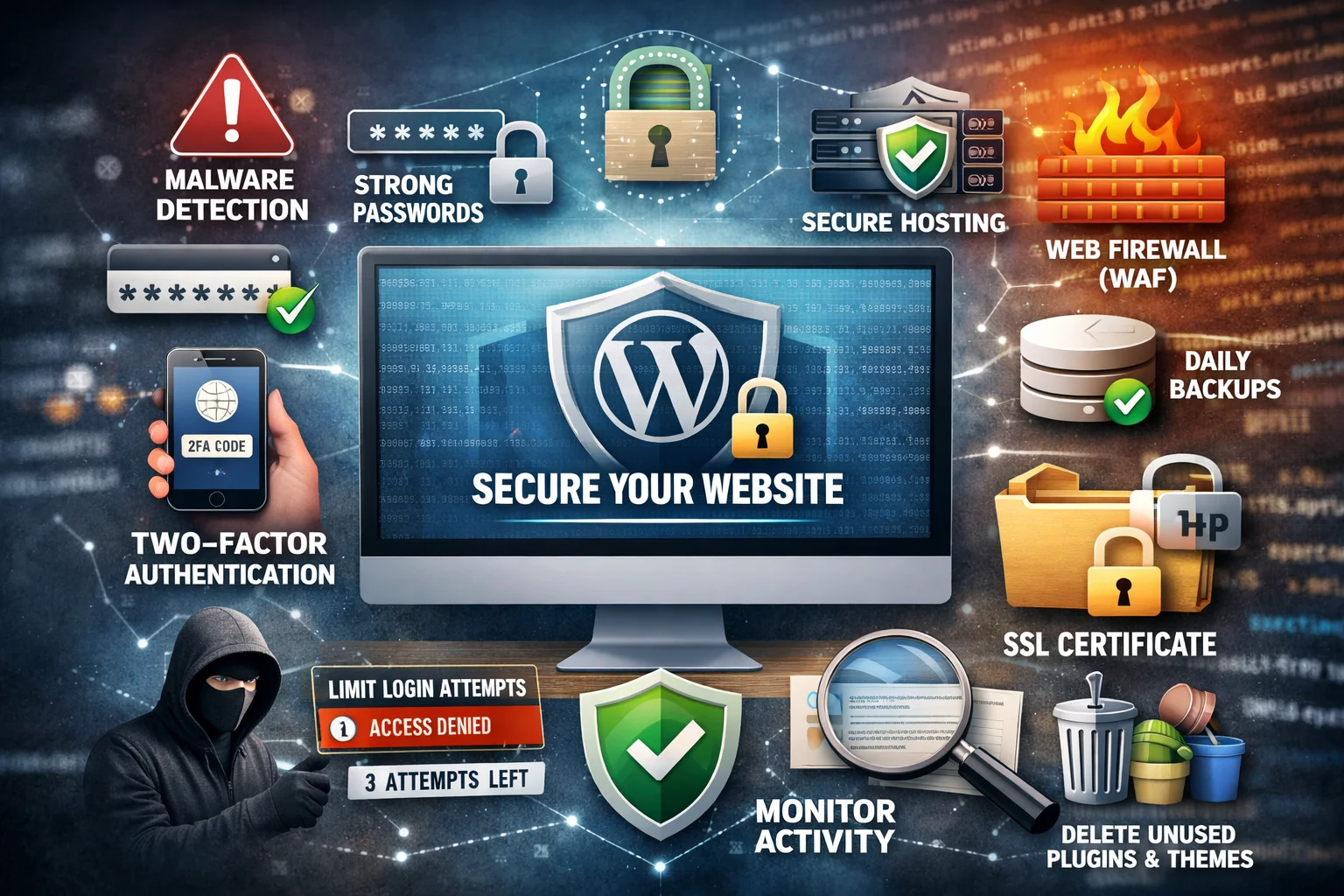
In this guide, you'll learn the complete WordPress security checklist for 2026 to protect your website from hackers, malware, and security threats.
Why WordPress Security Matters
Many website owners believe hackers only target large companies. In reality, most WordPress attacks are automated.
Bots constantly scan the internet searching for:
- outdated plugins
- vulnerable themes
- weak login credentials
- unsecured hosting environments
A hacked WordPress website can cause:
- loss of website data
- malware infections
- SEO ranking drops
- Google blacklisting
- website downtime
This is why securing your WordPress website should be a top priority.
1. Keep WordPress Core Updated
One of the easiest ways to protect your website is to keep WordPress updated.
WordPress updates often include:
- security patches
- bug fixes
- performance improvements
Running outdated versions of WordPress can expose your site to known vulnerabilities.
Best practice: Enable automatic updates whenever possible.
2. Use Strong Passwords and Usernames
Weak passwords are one of the most common reasons WordPress sites get hacked.
Avoid usernames like:
- admin
- administrator
- test
Instead:
- use a unique username
- create a strong password
- store credentials securely
A strong password should contain:
- uppercase letters
- lowercase letters
- numbers
- special characters
3. Enable Two-Factor Authentication (2FA)
Two-factor authentication adds an extra security layer to your login system.
Even if someone steals your password, they cannot access your account without the verification code.
Popular plugins include:
- Wordfence Login Security
- WP 2FA
- Google Authenticator
4. Install a WordPress Security Plugin
A good WordPress security plugin helps detect threats and block attacks.
Security plugins can provide:
- malware scanning
- firewall protection
- brute-force attack prevention
- login monitoring
Popular plugins:
- Wordfence Security
- Sucuri Security
- iThemes Security
5. Use a Web Application Firewall (WAF)
A Web Application Firewall (WAF) filters incoming traffic and blocks malicious requests.
Benefits include:
- blocking suspicious IP addresses
- preventing brute-force attacks
- protecting against DDoS attacks
A firewall can significantly reduce the risk of hacking attempts.
6. Limit Login Attempts
Brute-force attacks try thousands of password combinations.
You can prevent this by limiting login attempts.
Recommended configuration:
- maximum 3–5 attempts
- temporary IP blocking
This helps stop automated login attacks.
7. Choose Secure WordPress Hosting
Your hosting provider plays a critical role in WordPress security and performance.
Secure hosting should include:
- server firewalls
- malware scanning
- automatic backups
- SSL certificates
If you're managing multiple websites or WordPress projects, a platform like this can simplify hosting management, backups, SSL, and server security:
https://go.airesearchplus.com/HostingManagement_GPTwebsite (Sponsored)
8. Install an SSL Certificate
SSL encrypts the connection between your website and users.
Benefits include:
- secure data transfer
- improved SEO rankings
- increased user trust
Always use HTTPS instead of HTTP.
9. Remove Unused Plugins and Themes
Unused plugins and themes create security risks.
Best practices include:
- deleting inactive plugins
- removing unused themes
- installing plugins only from trusted sources
Fewer plugins means fewer vulnerabilities.
10. Backup Your WordPress Website Regularly
Backups are essential for recovering from security incidents.
Best backup practices:
- automatic daily backups
- store backups offsite
- test backup restoration
Backups ensure you can quickly recover from hacks or server failures.
11. Protect Important WordPress Files
Some WordPress files contain critical configuration information.
Important files include:
- wp-config.php
- .htaccess
Protect these files by:
- restricting file permissions
- blocking unauthorized access
12. Monitor Website Activity
Monitoring helps detect suspicious behavior early.
Track activities such as:
- login attempts
- plugin installations
- file modifications
Activity logs help identify potential security threats.
Final Thoughts
WordPress security is an ongoing process. By following this WordPress Security Checklist for 2026, you can protect your website from hackers, malware, and vulnerabilities.
A secure website not only protects your data but also helps maintain SEO rankings, website performance, and visitor trust.
Implement these security best practices to keep your WordPress site safe and reliable in 2026 and beyond.